
How to Create Your New Priyo Business Account
Follow these steps to create and verify your new Priyo Business account.
Please note that for new business account you must have:
LLC, ITIN and physical US operating address (Register agent address is not supported).
Video Tutorial:
1. Log in and open Business
Visit pay.priyo.com and log in to your existing Priyo account.
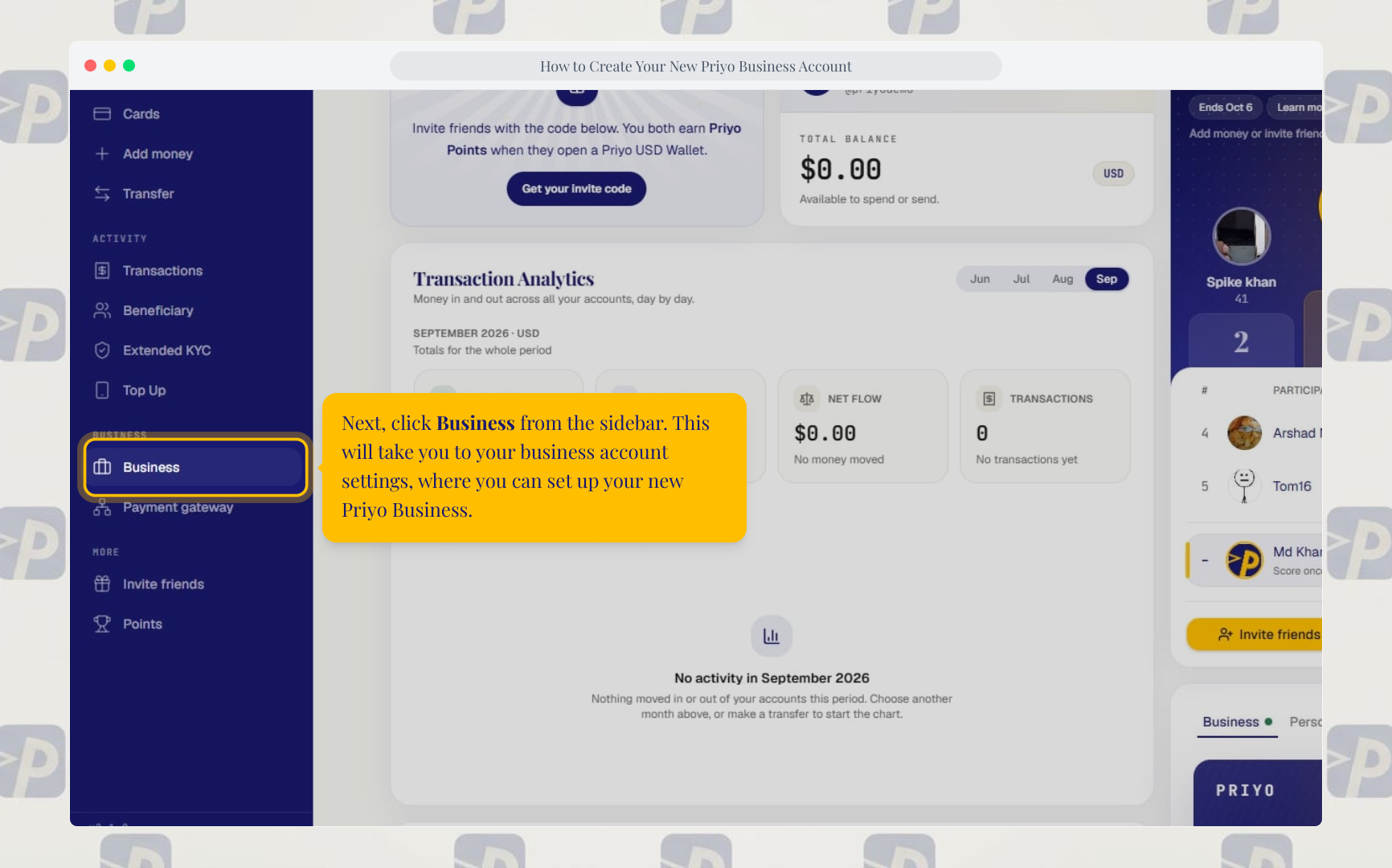
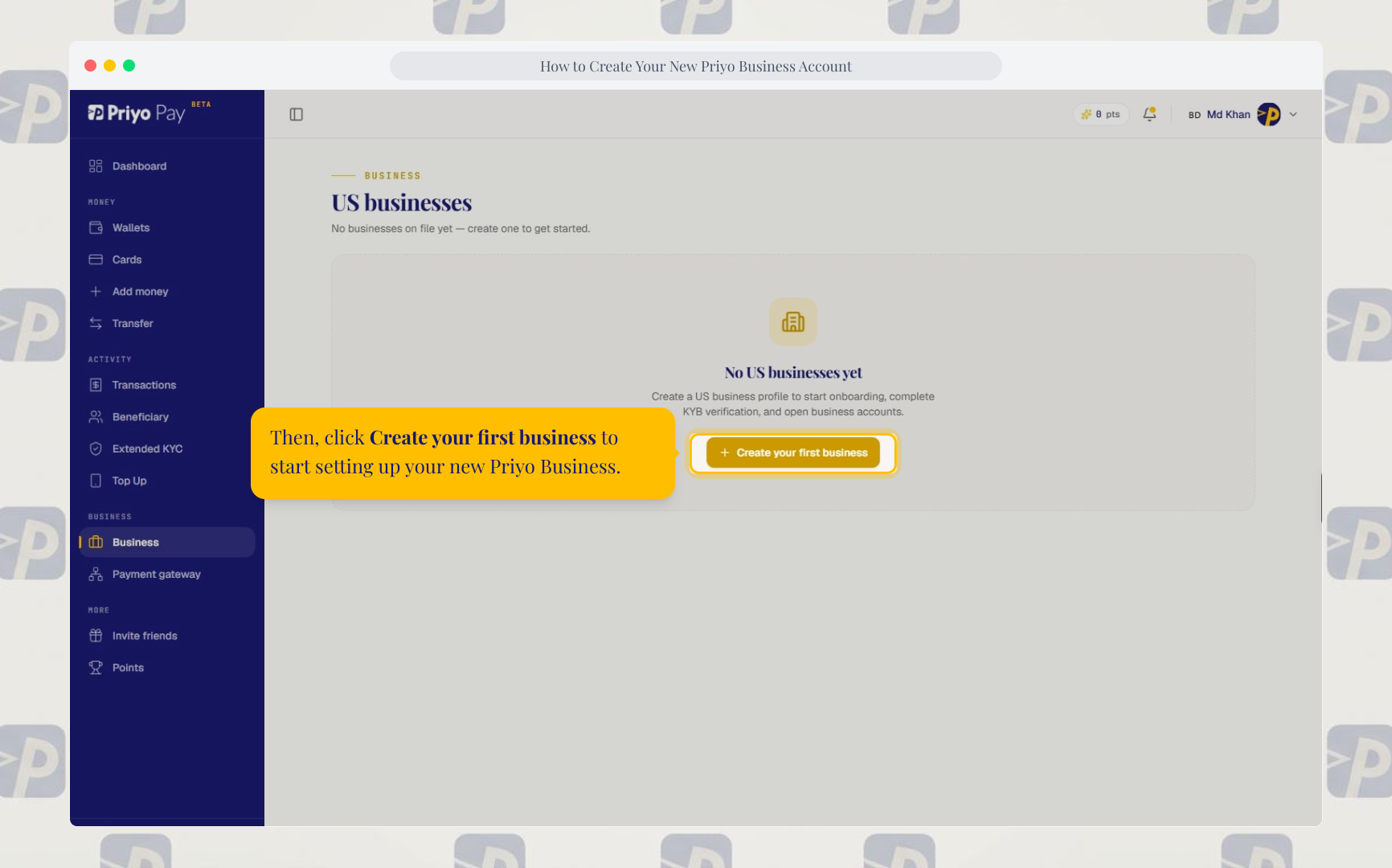
From your dashboard, click Business, then select Create your first business.
If you don't have a Priyo account yet, you can create one in just a few minutes.
2. Enter your business information
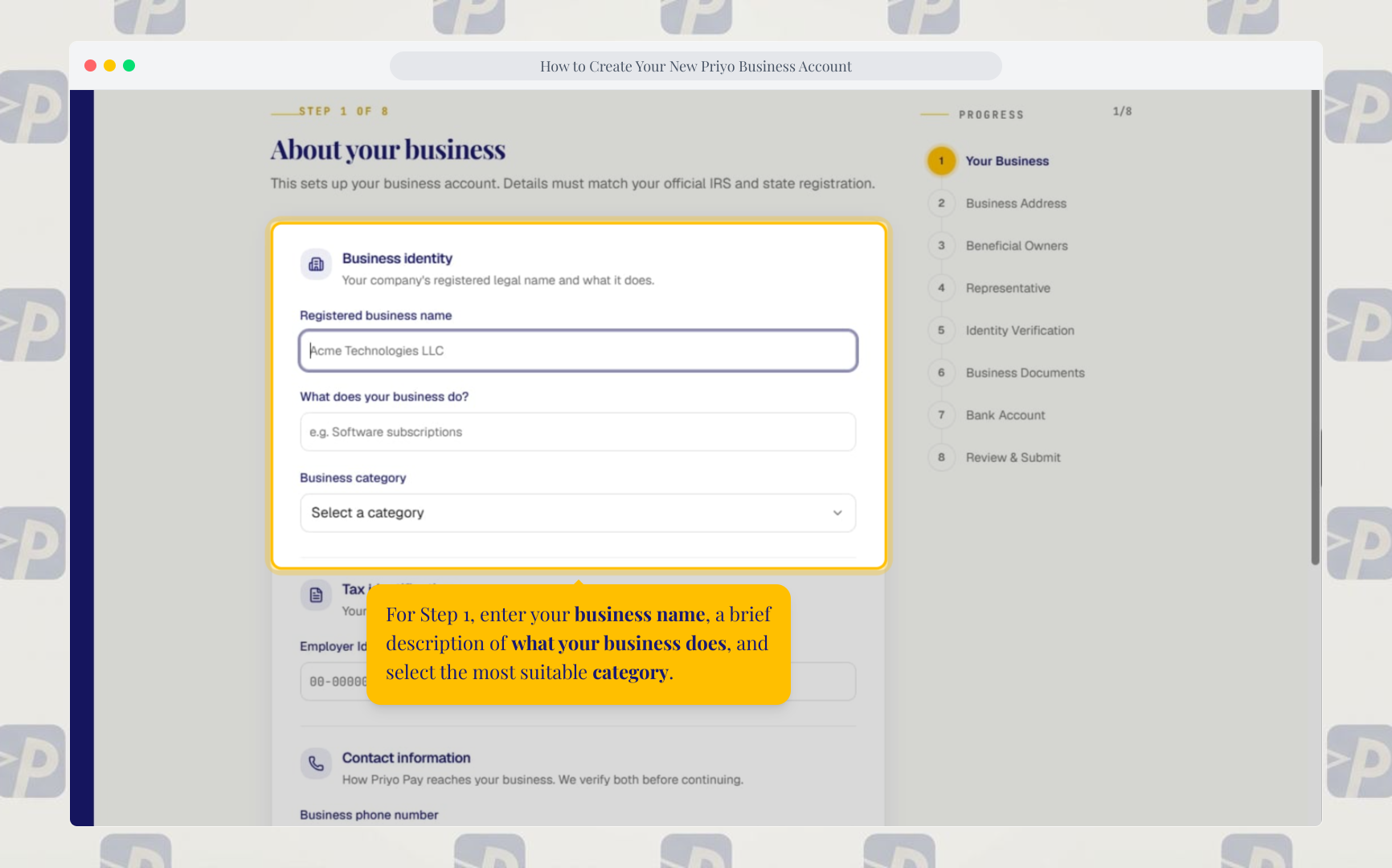
Enter your:
- Business name
- Business description
- Business category
- EIN (Employer Identification Number)
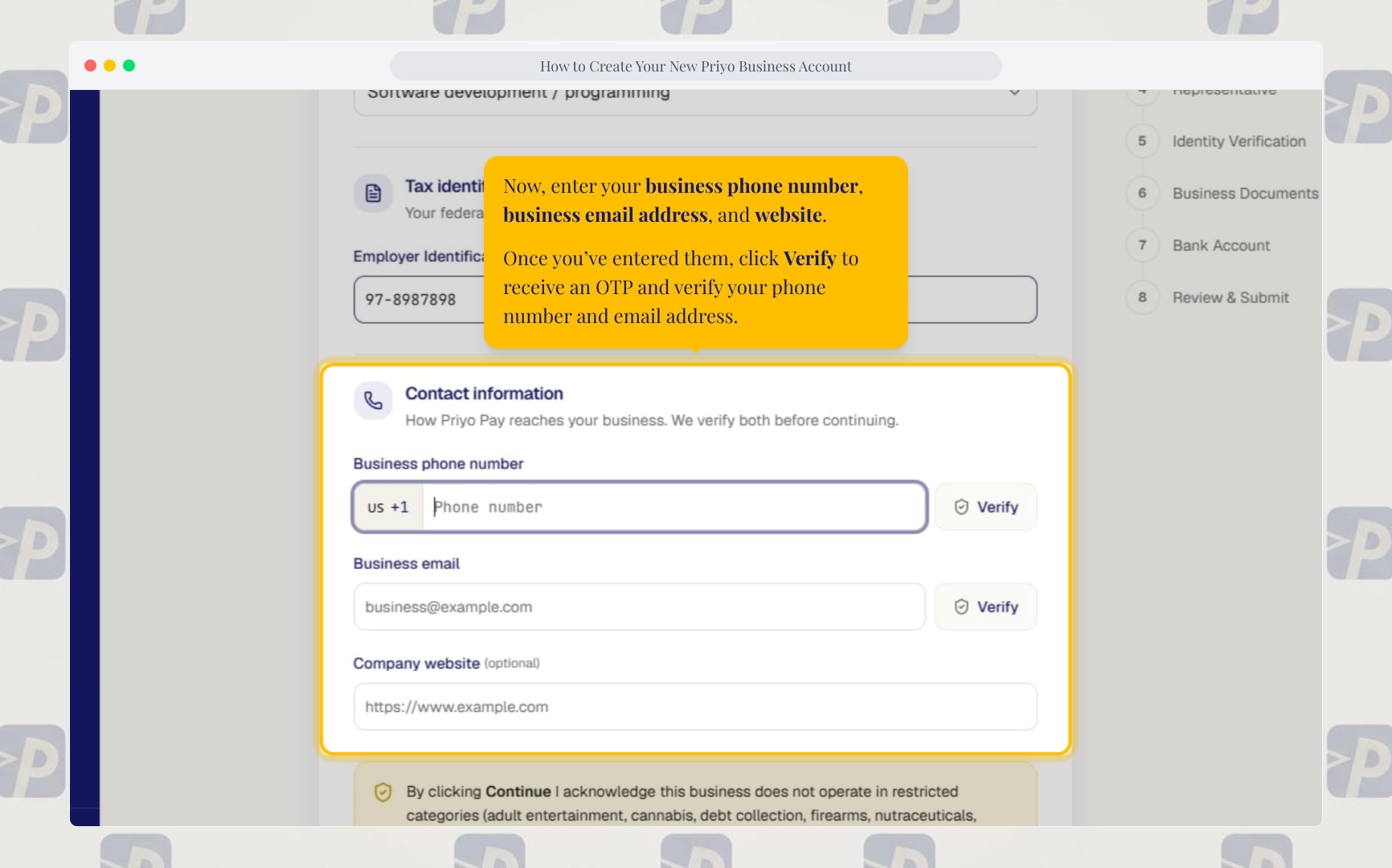
- Business phone number
- Business email address
- Website
Click Verify to complete the phone and email OTP verification, then click Continue.
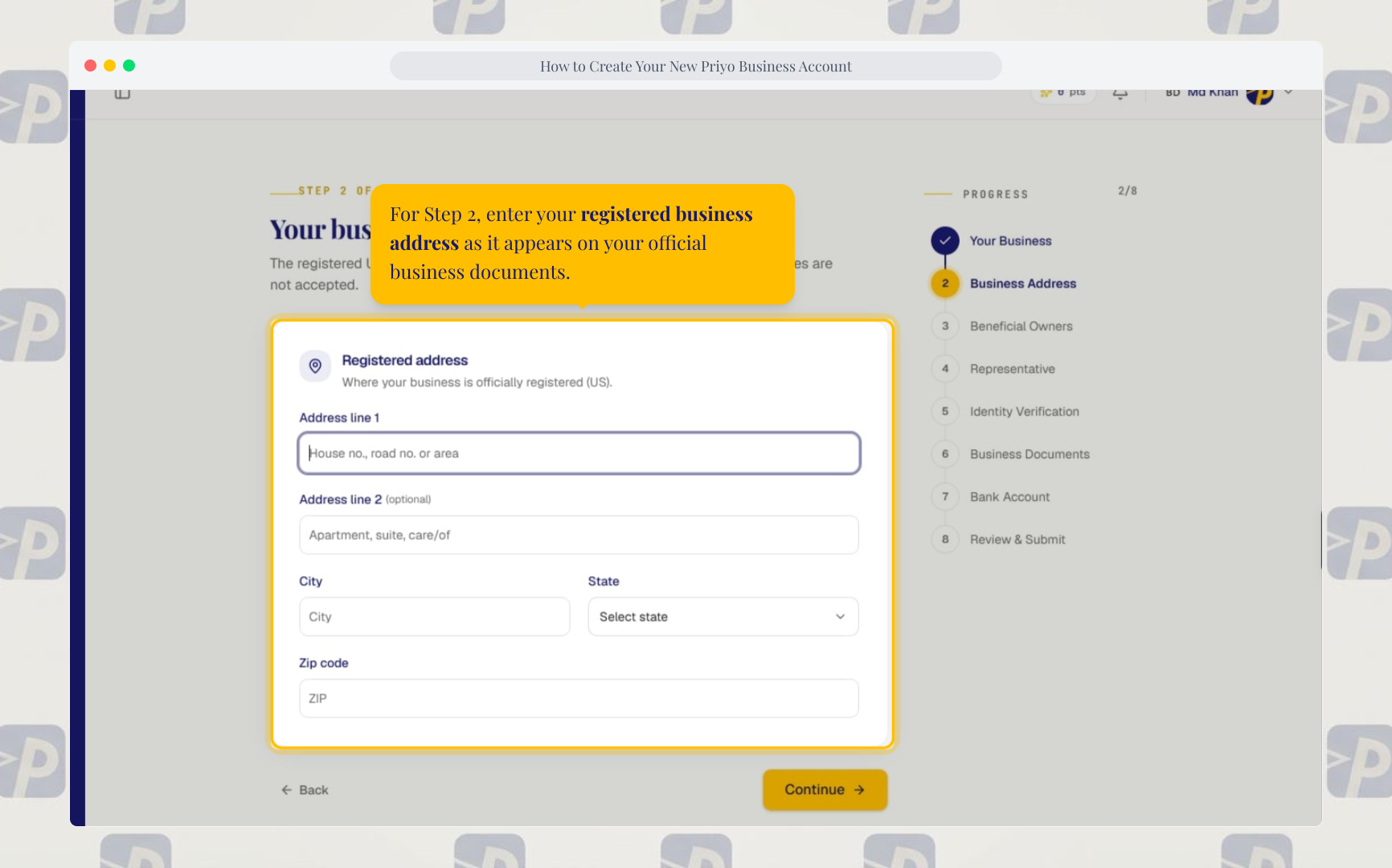
3. Enter your registered business address
Enter your registered business address exactly as it appears on your official business documents.
Then click Continue.
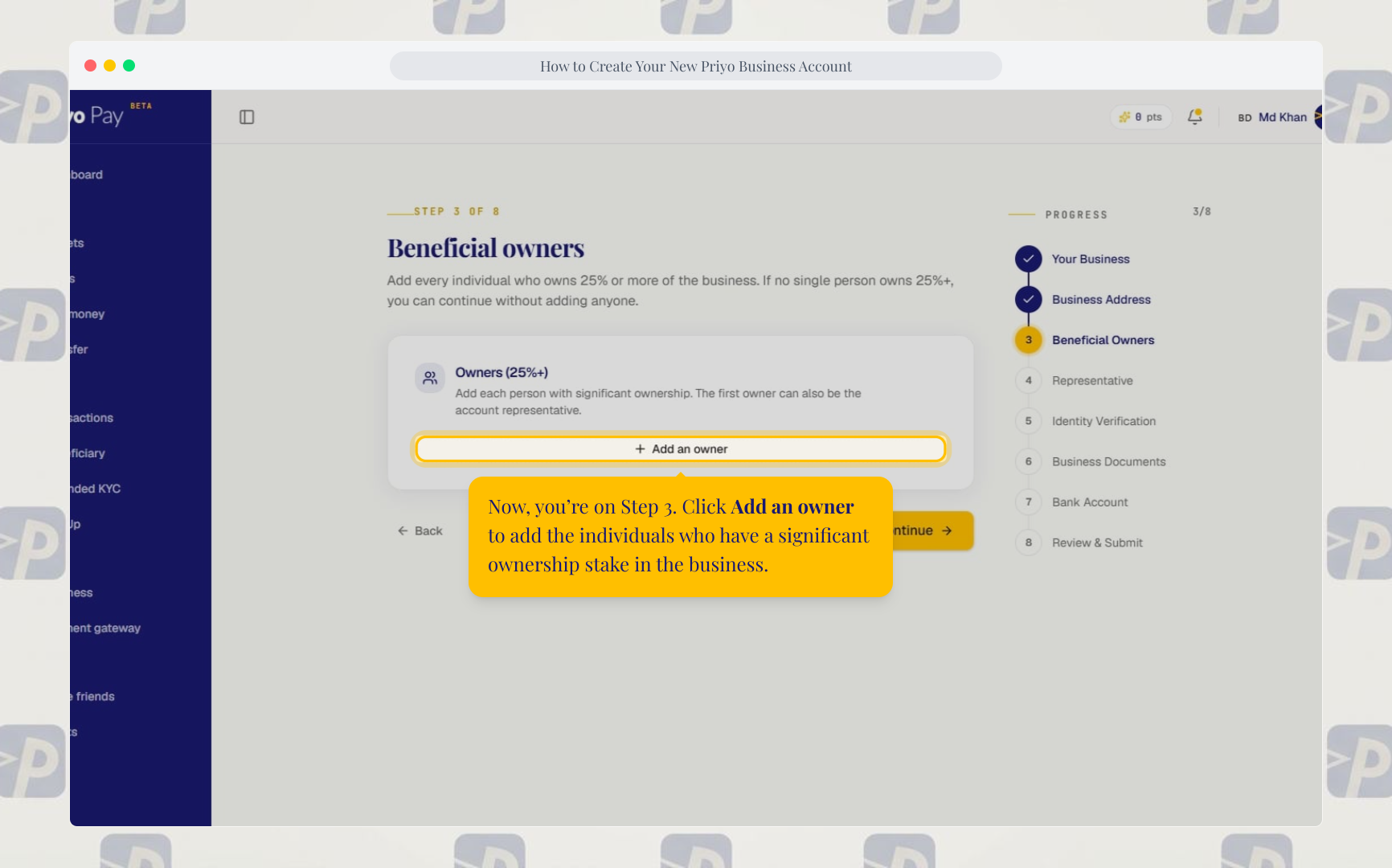
4. Add your business owners
Click Add an owner and provide the required information for each business owner.
If the person is the account representative, select the appropriate checkbox.
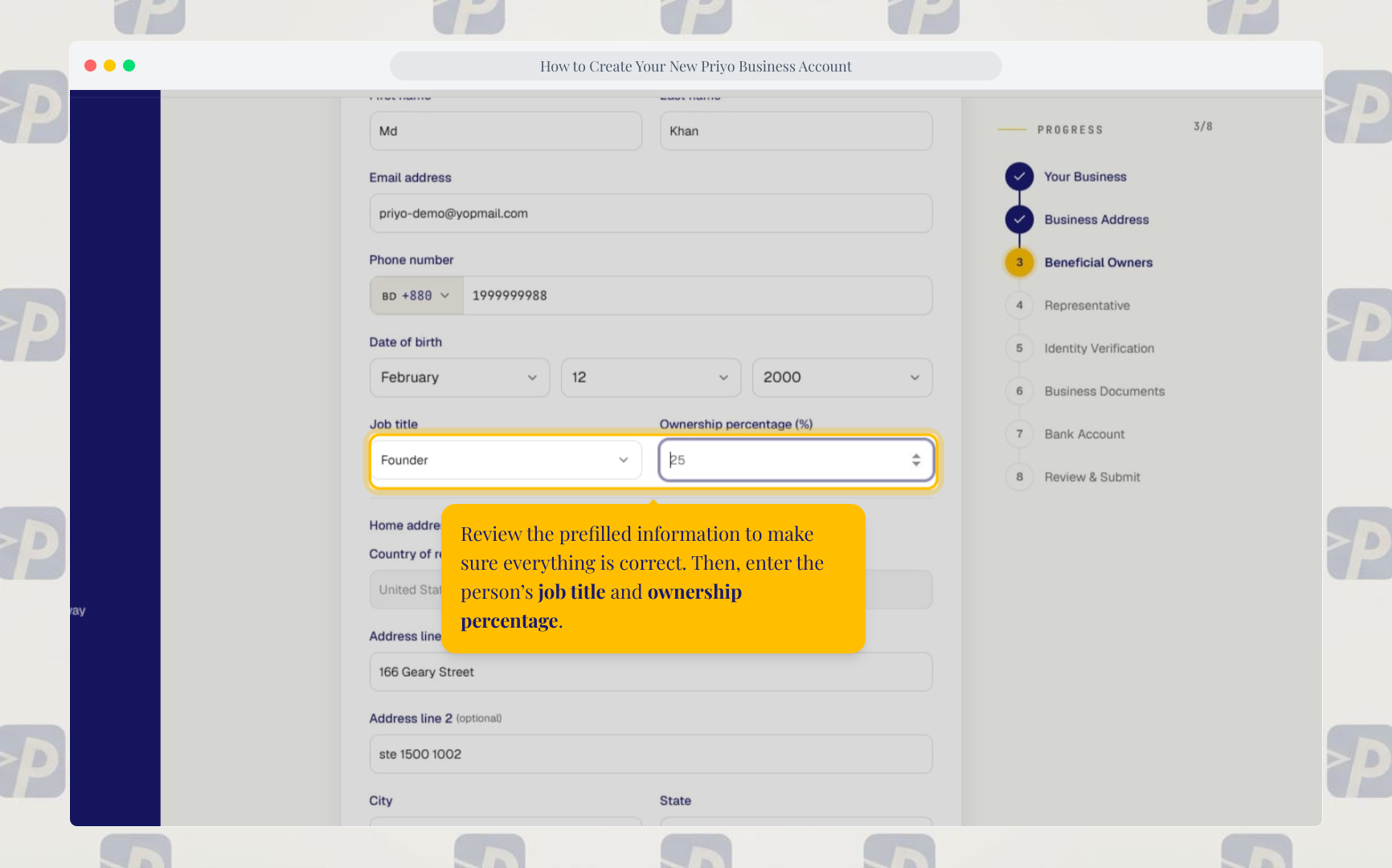
Enter or review their:
- Job title
- Ownership percentage
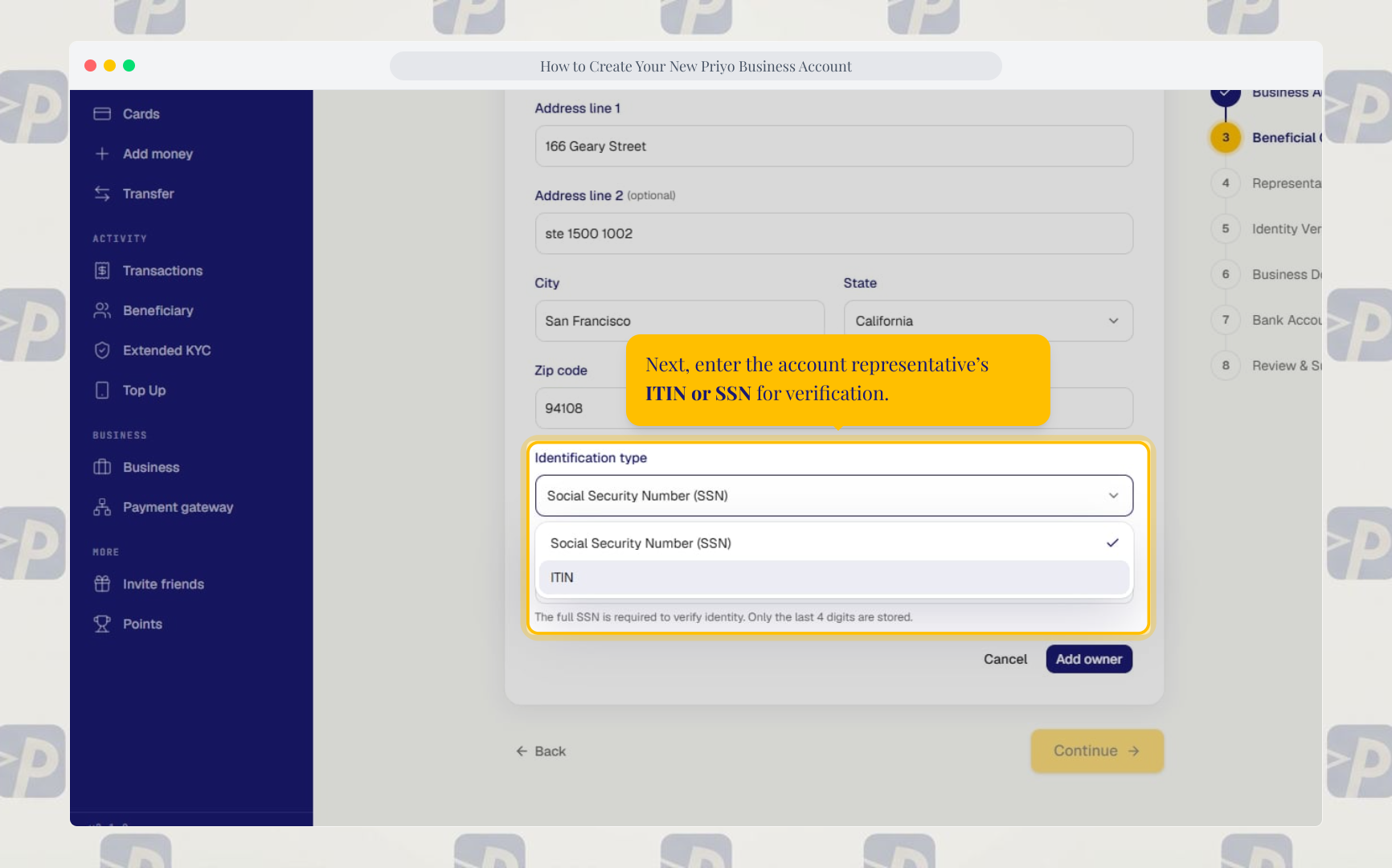
- ITIN or SSN
Click Add owner when finished.
If your business has multiple owners, repeat the process for anyone who owns 25% or more of the business.
5. Start identity verification
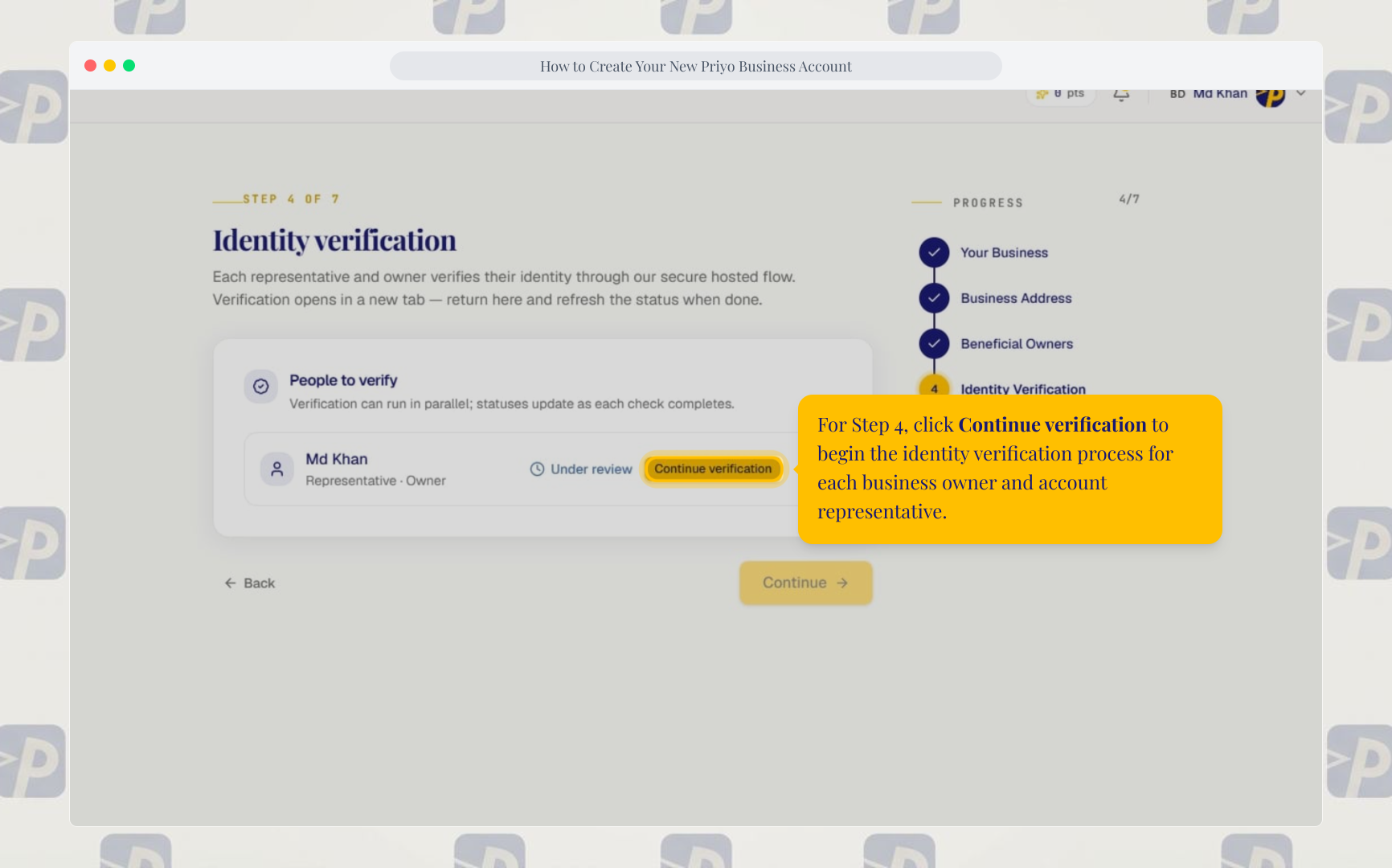
After adding all required owners, click Continue, then select Continue verification.
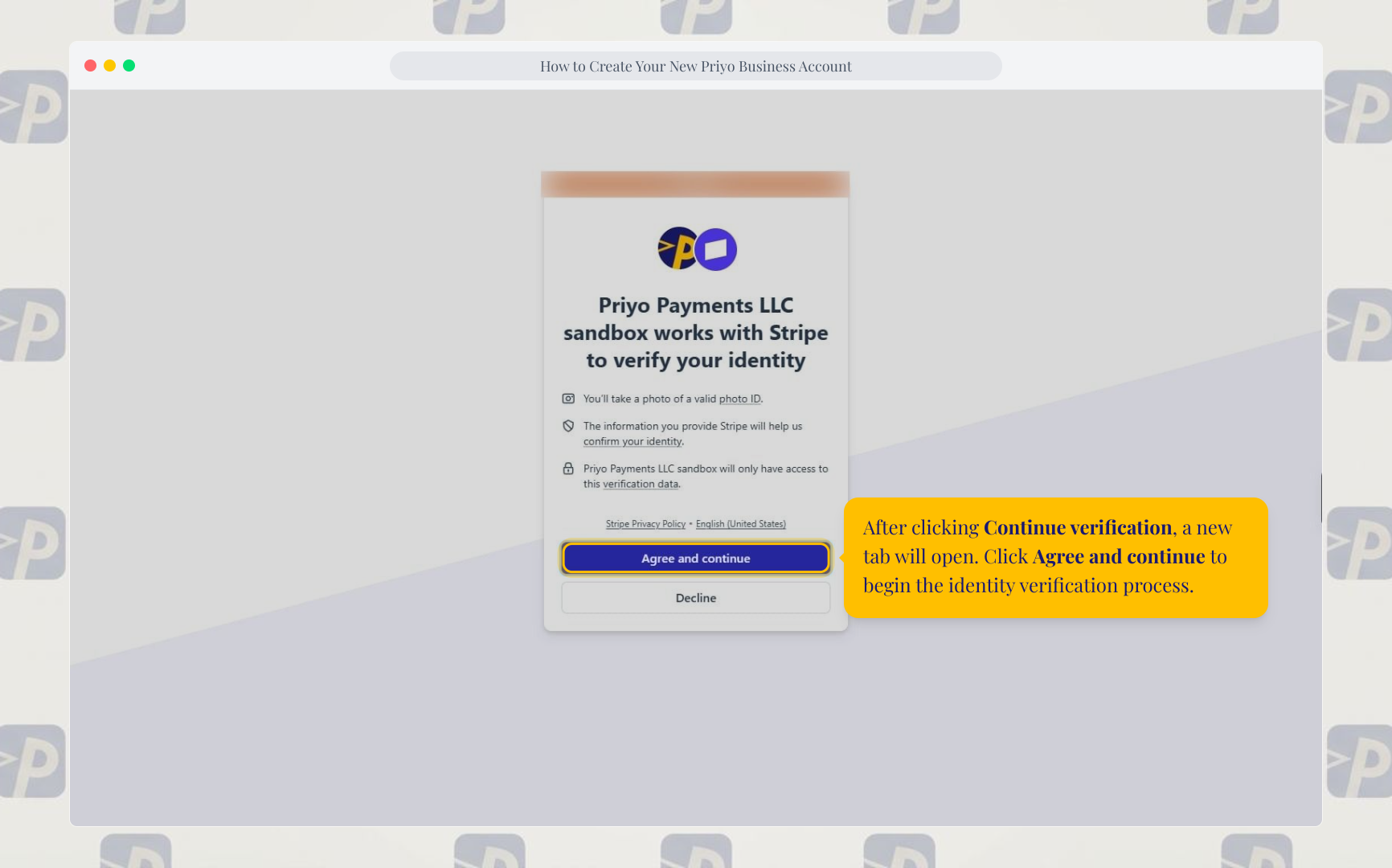
A new tab will open. Click Agree and continue to begin the verification process.
6. Complete identity verification
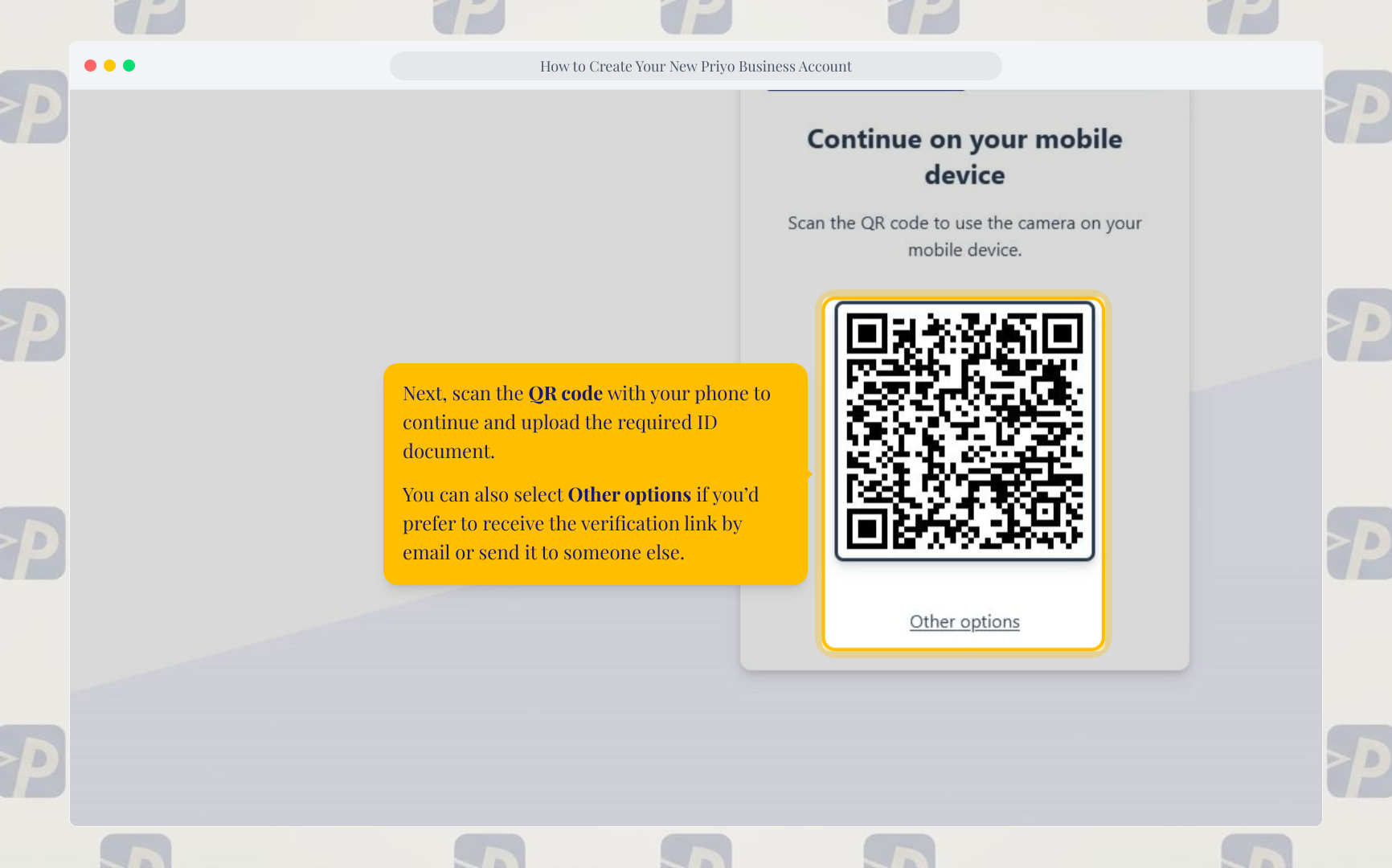
Scan the QR code with your phone and upload the required ID document.
You can also select Other options to receive the verification link by email or send it to someone else.
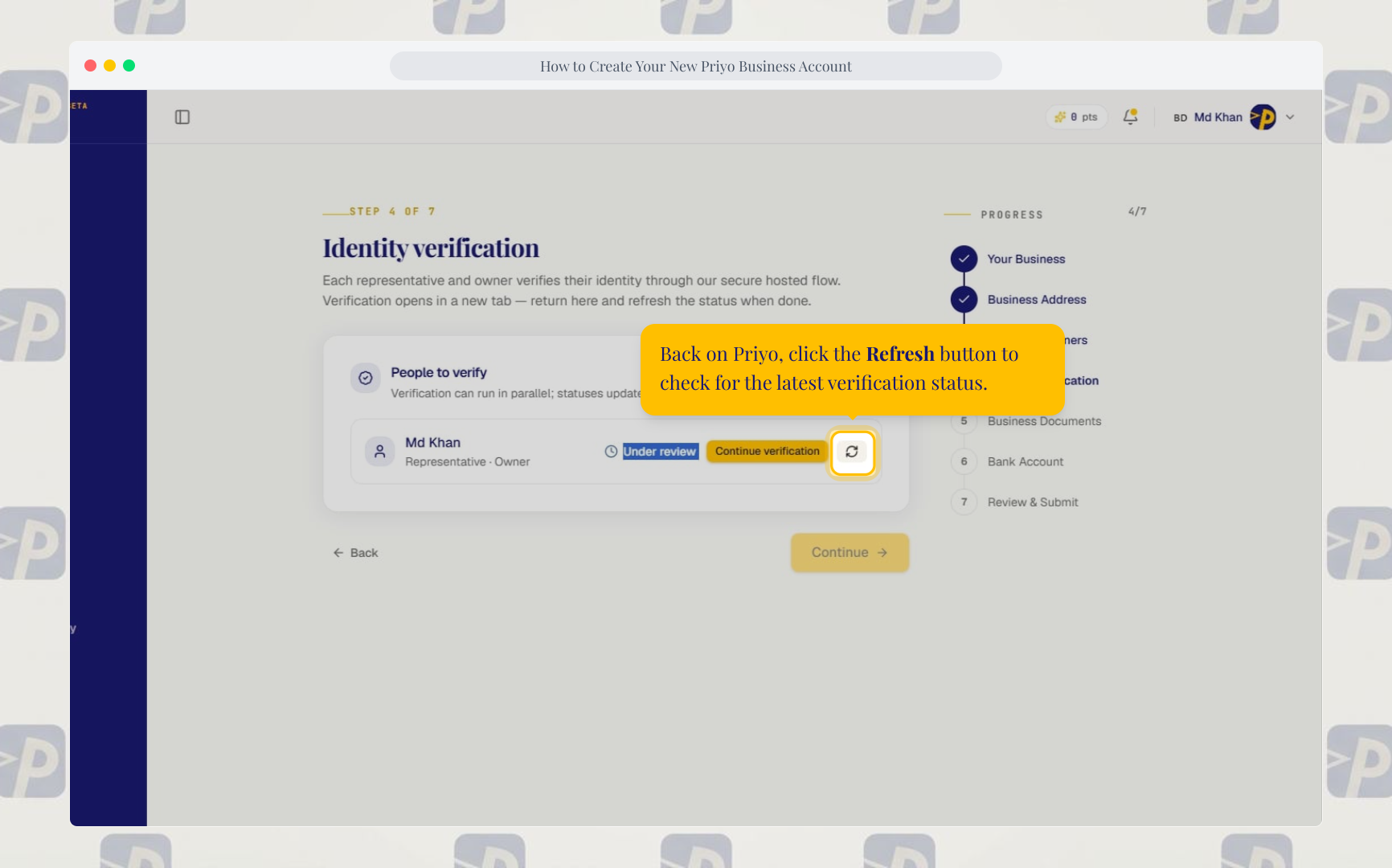
After submitting your ID, return to Priyo and click Refresh to check your verification status.
Once the status shows Verified, click Continue.
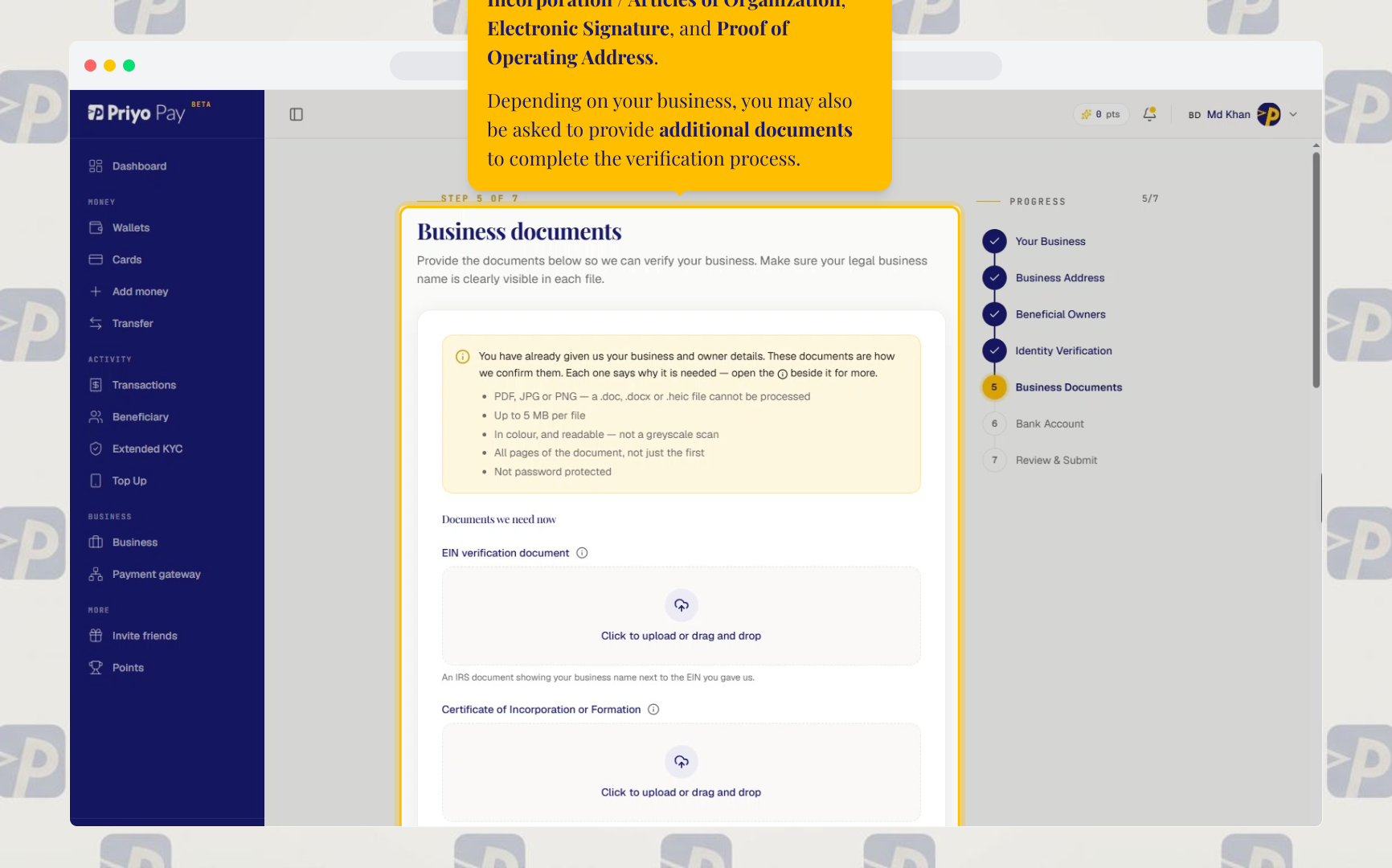
7. Upload your business documents
Upload all required business documents, including:
- Certificate of Incorporation / Articles of Organization
- Proof of Operating Address
Depending on your business, you may also be asked to provide additional documents.
After uploading the required documents, click Continue.
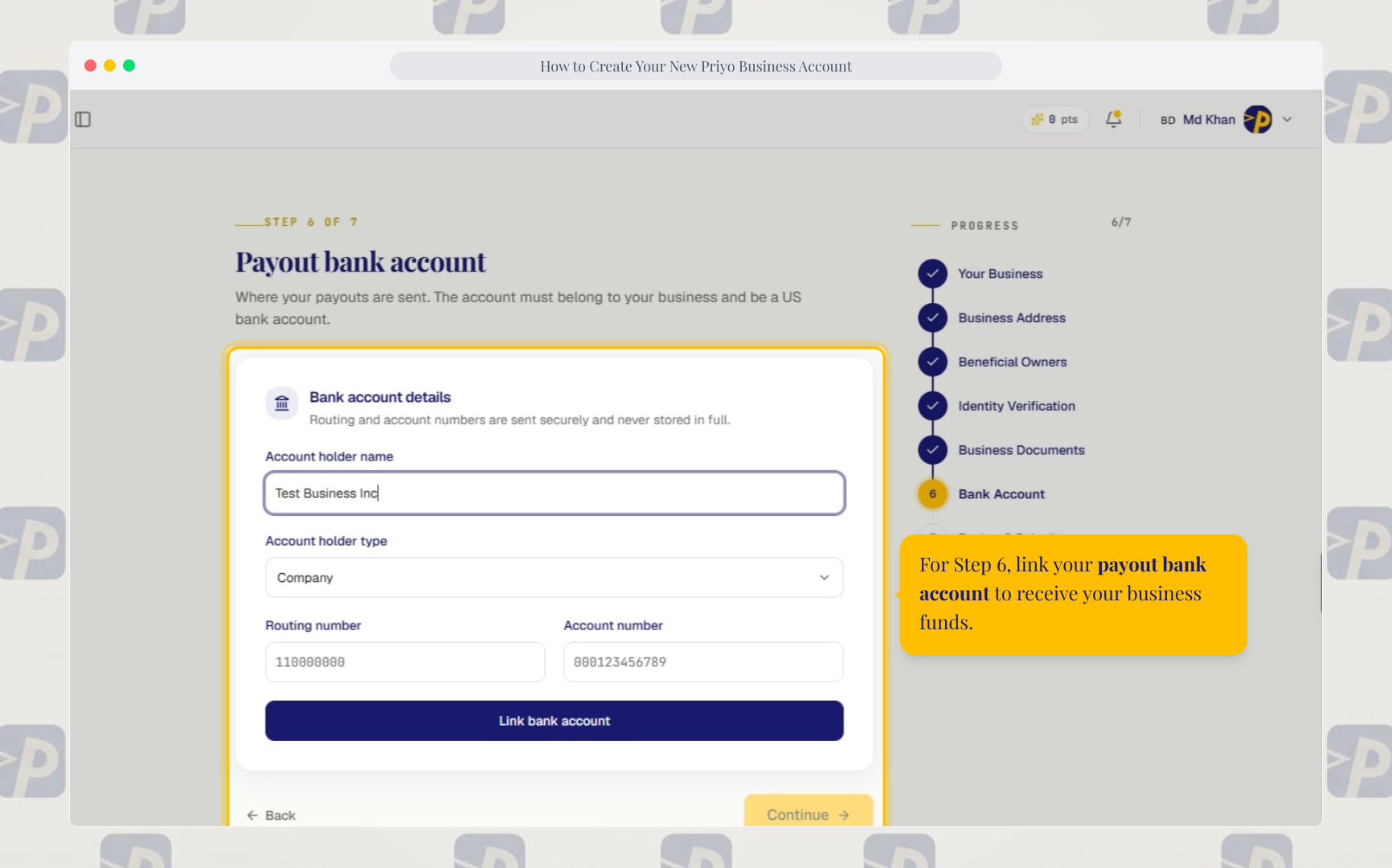
8. Add your payout bank account
Link your payout bank account to receive your business funds.
Once the account is added, click Continue.
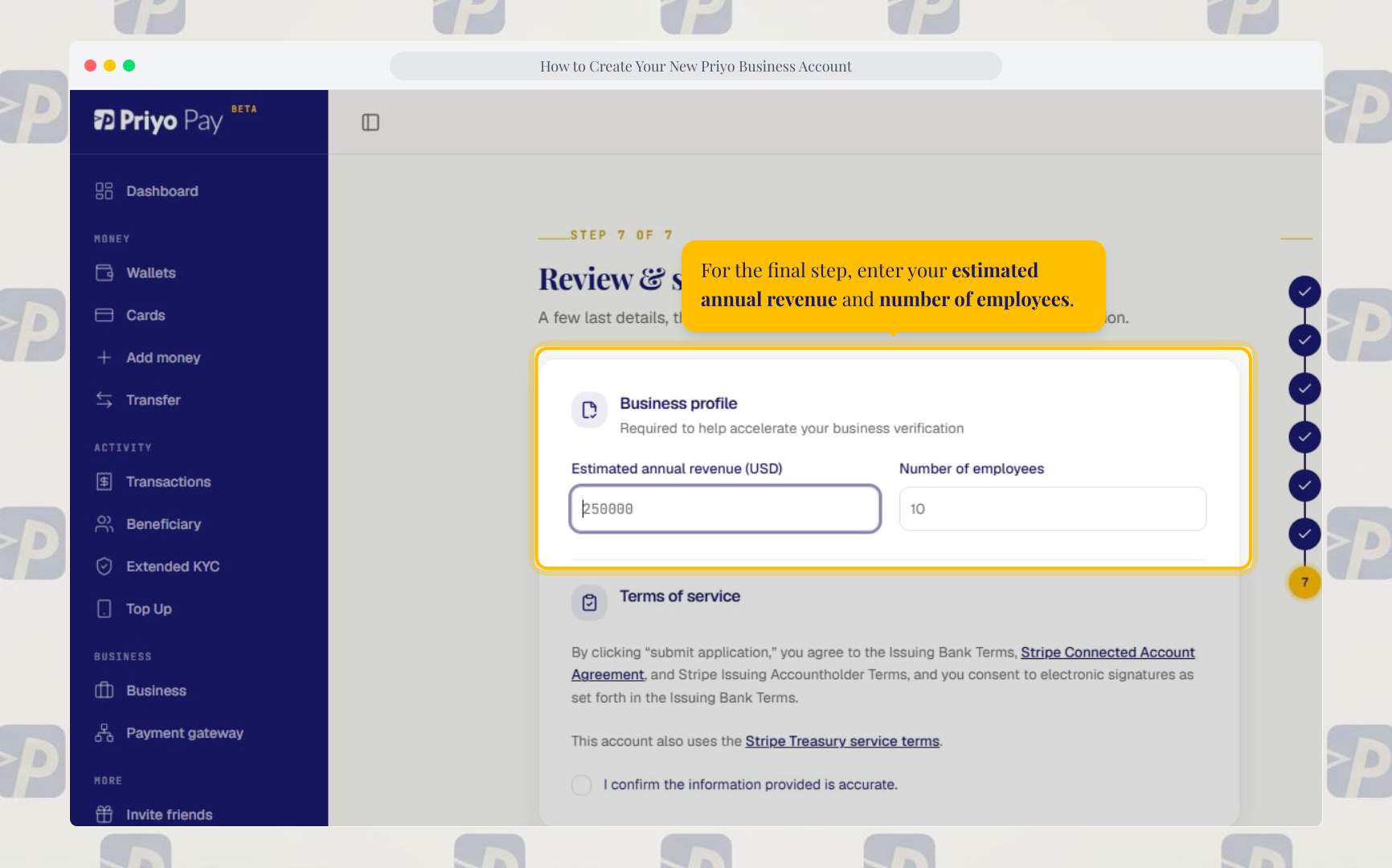
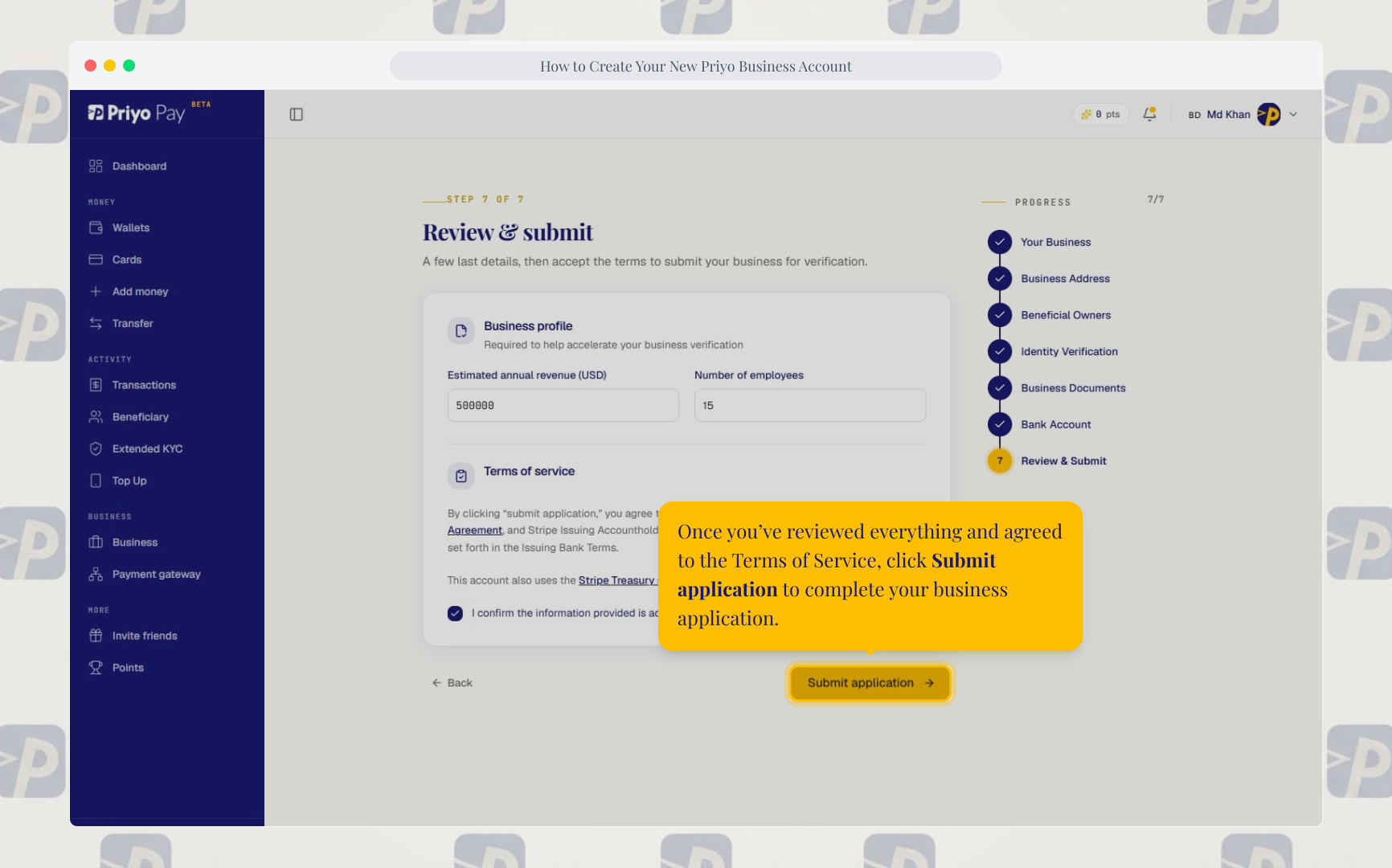
9. Enter your business details
Enter your:
- Estimated annual revenue
- Number of employees
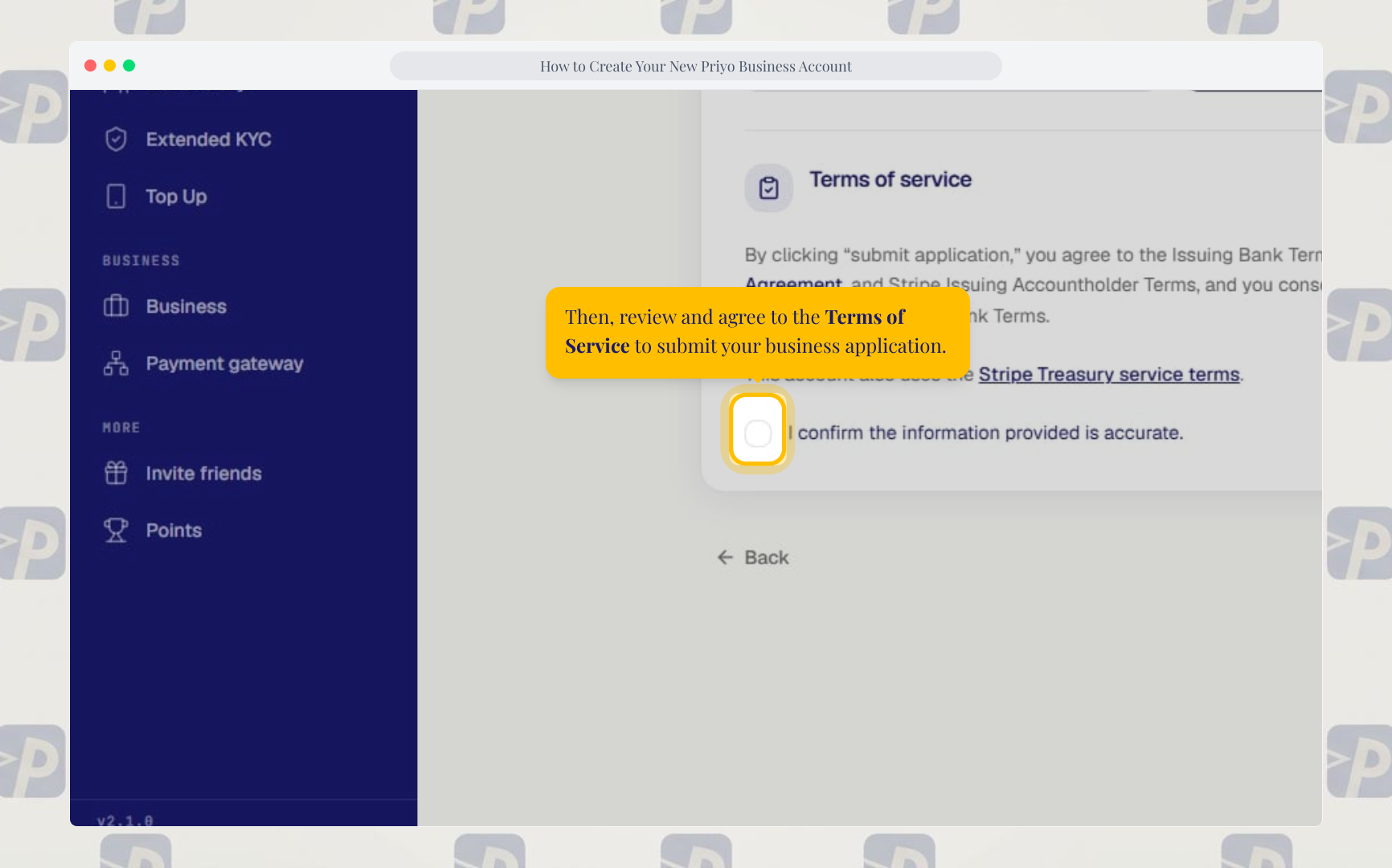
10. Review and submit your application
Review the Terms of Service and agree to them.
Then click Submit application to complete your business application.
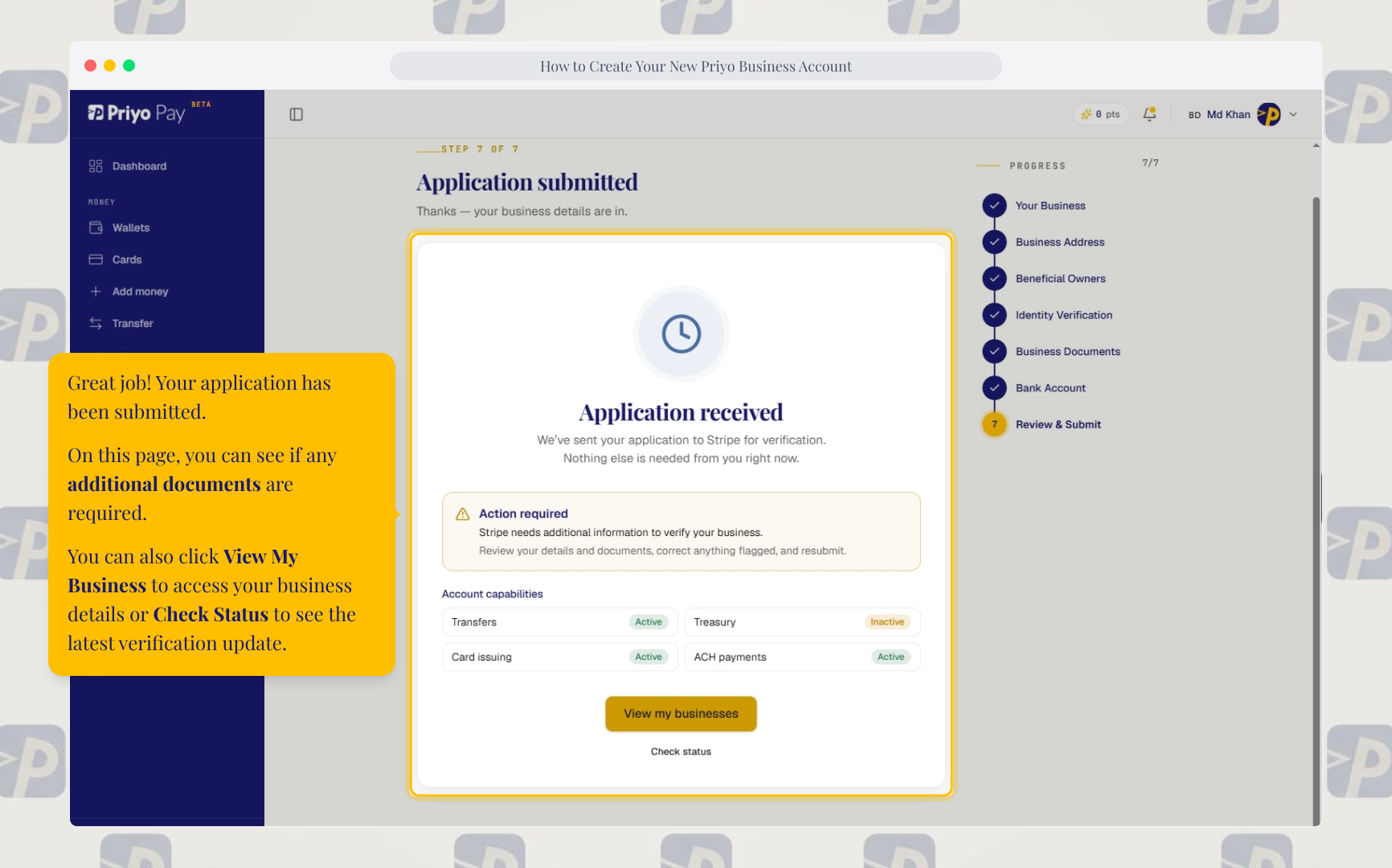
11. Check your application status
After submitting your application, you can:
- Check whether additional documents are required
- Select View My Business to access your business details
- Select Check Status to view the latest verification update
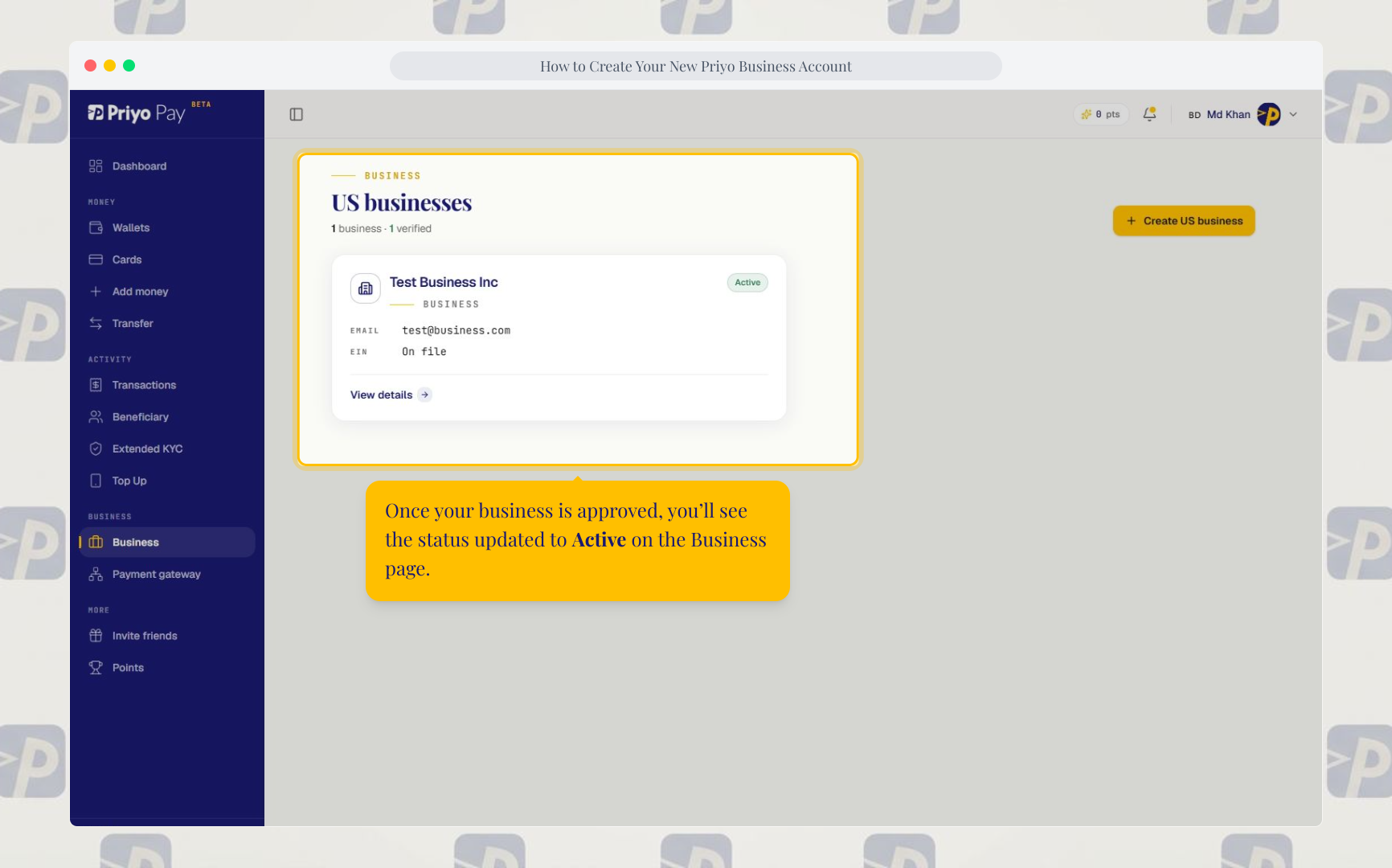
12. Business approval
Once your business is approved, its status will change to Active on the Business page.
Your Priyo Business account is now ready to use.
Next step: Open a Priyo Financial Wallet to access your business financial account details.
Updated on: 17/10/2026
Thank you!