
Migrate Your Old USD Account Balance to New USD Account in Priyo
Follow the tutorial below to migrate your funds to your new Priyo USD account.
Video Tutorial:
1. Log in to your Priyo account
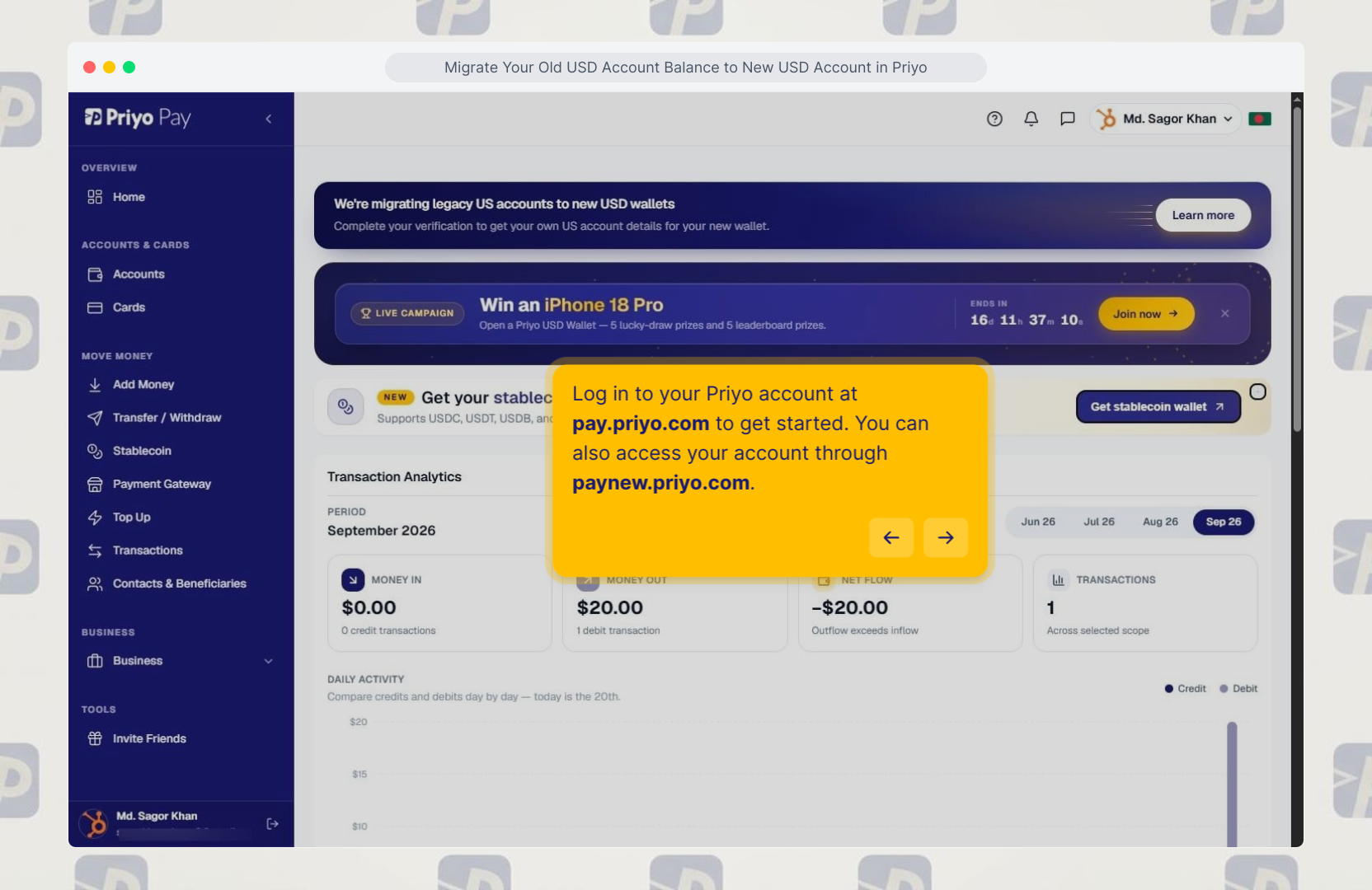
Log in to your Priyo account at pay.priyo.com to get started.
2. Open the Migration option
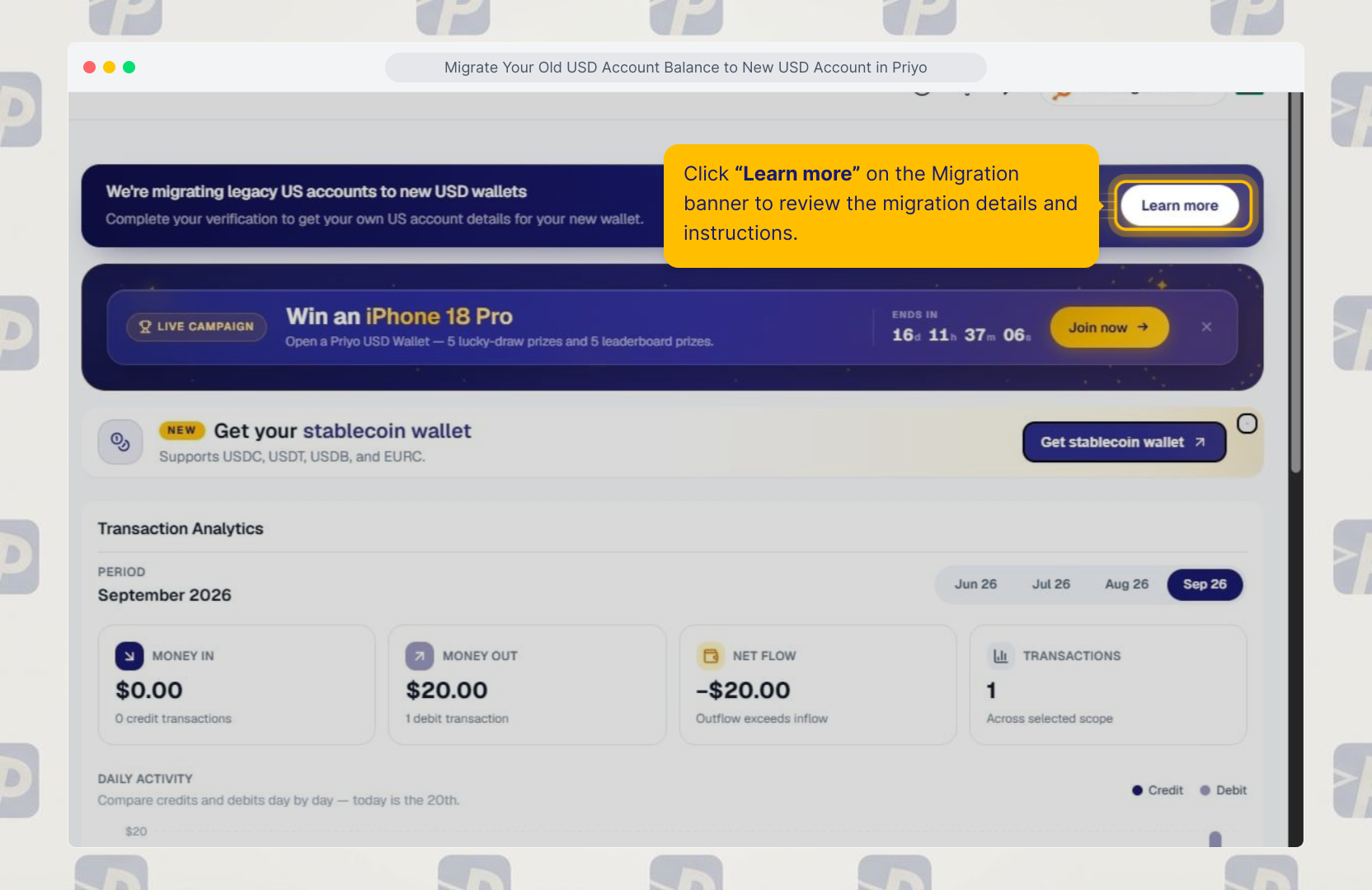
Click “Learn more” on the Migration banner to review the migration details and instructions.
3. Review your migration options
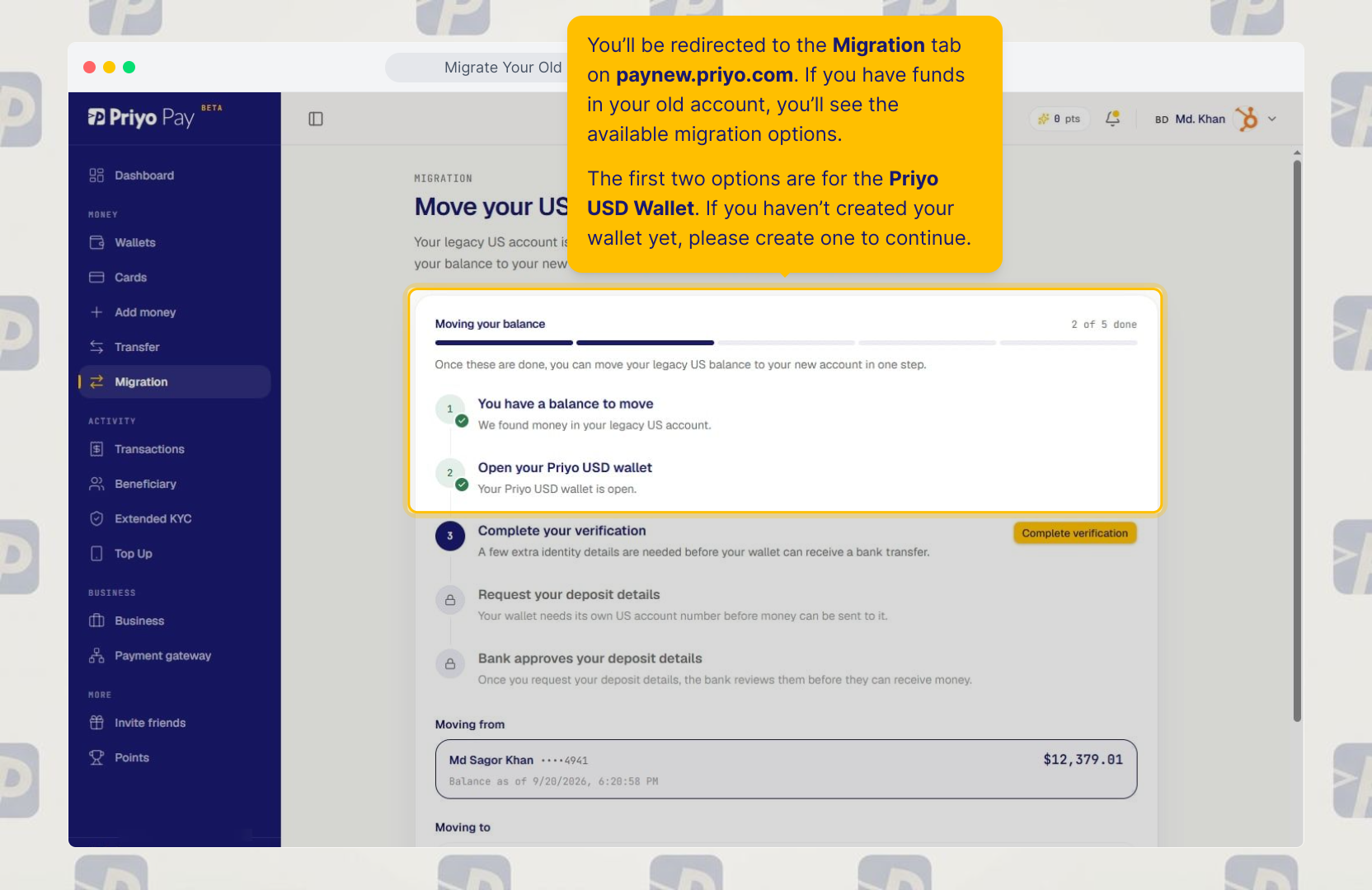
You’ll be redirected to the Migration tab on paynew.priyo.com.
If you have funds in your old account, you’ll see the available migration options.
The first two options are for the Priyo USD Wallet. If you haven’t created your wallet yet, please create one to continue.
4. Get your new USD account
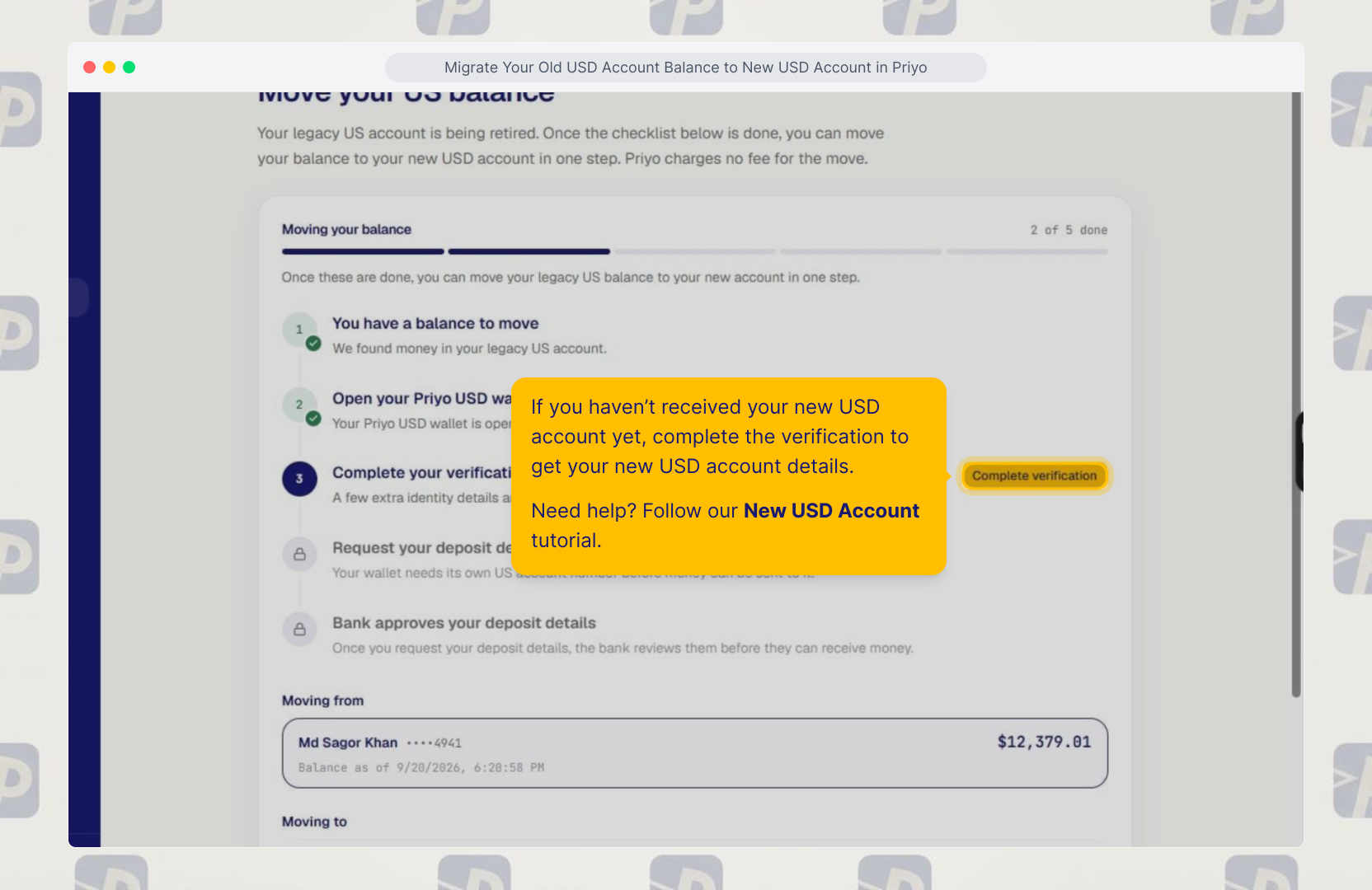
If you haven’t received your new USD account yet, complete the verification to get your new USD account details.
Need help? Follow our New USD Account tutorial.
5. Continue with the migration
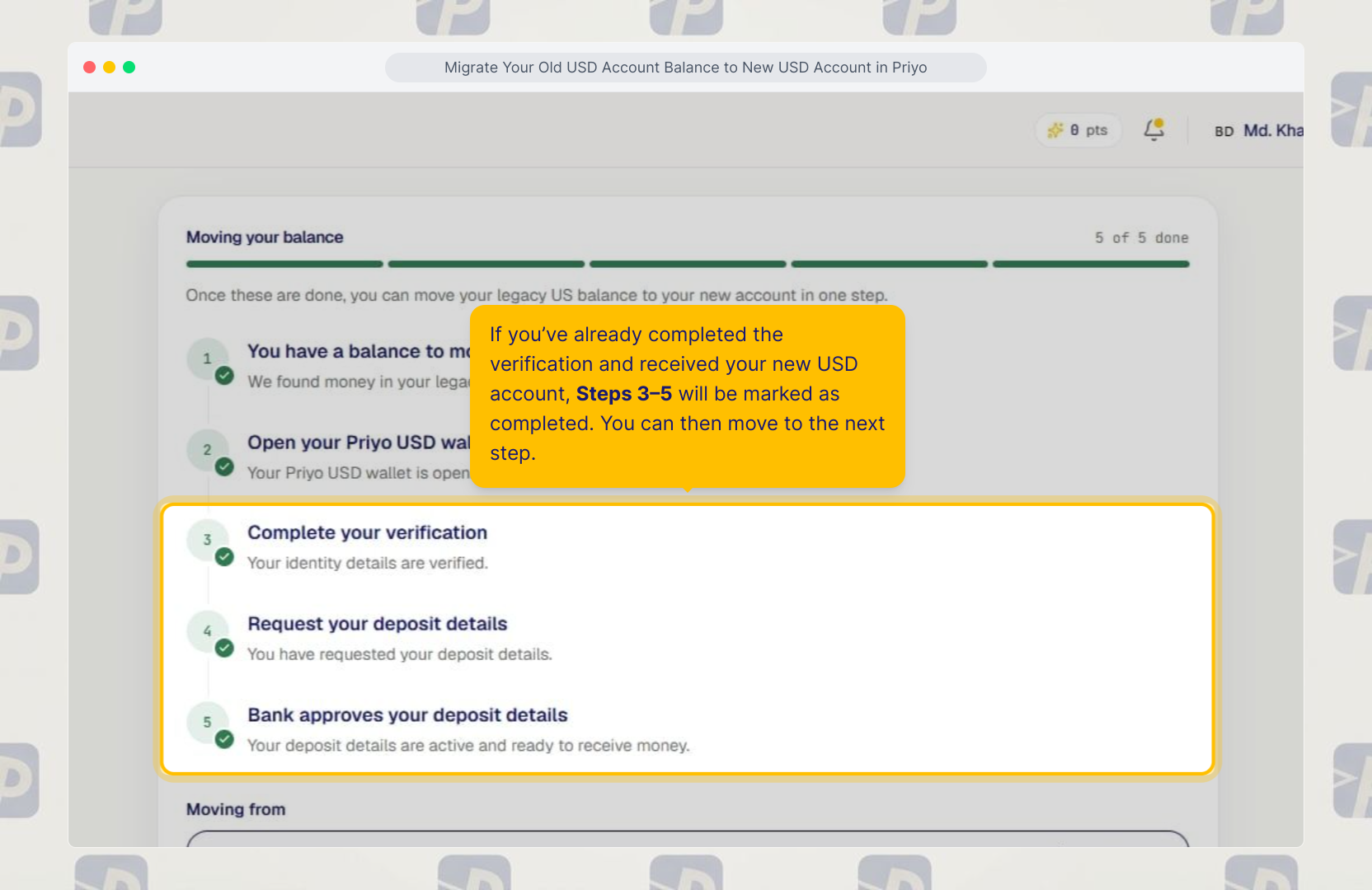
If you’ve already completed the verification and received your new USD account, Steps 3–5 will be marked as completed.
You can then move to the next step.
6. Review your old and new accounts
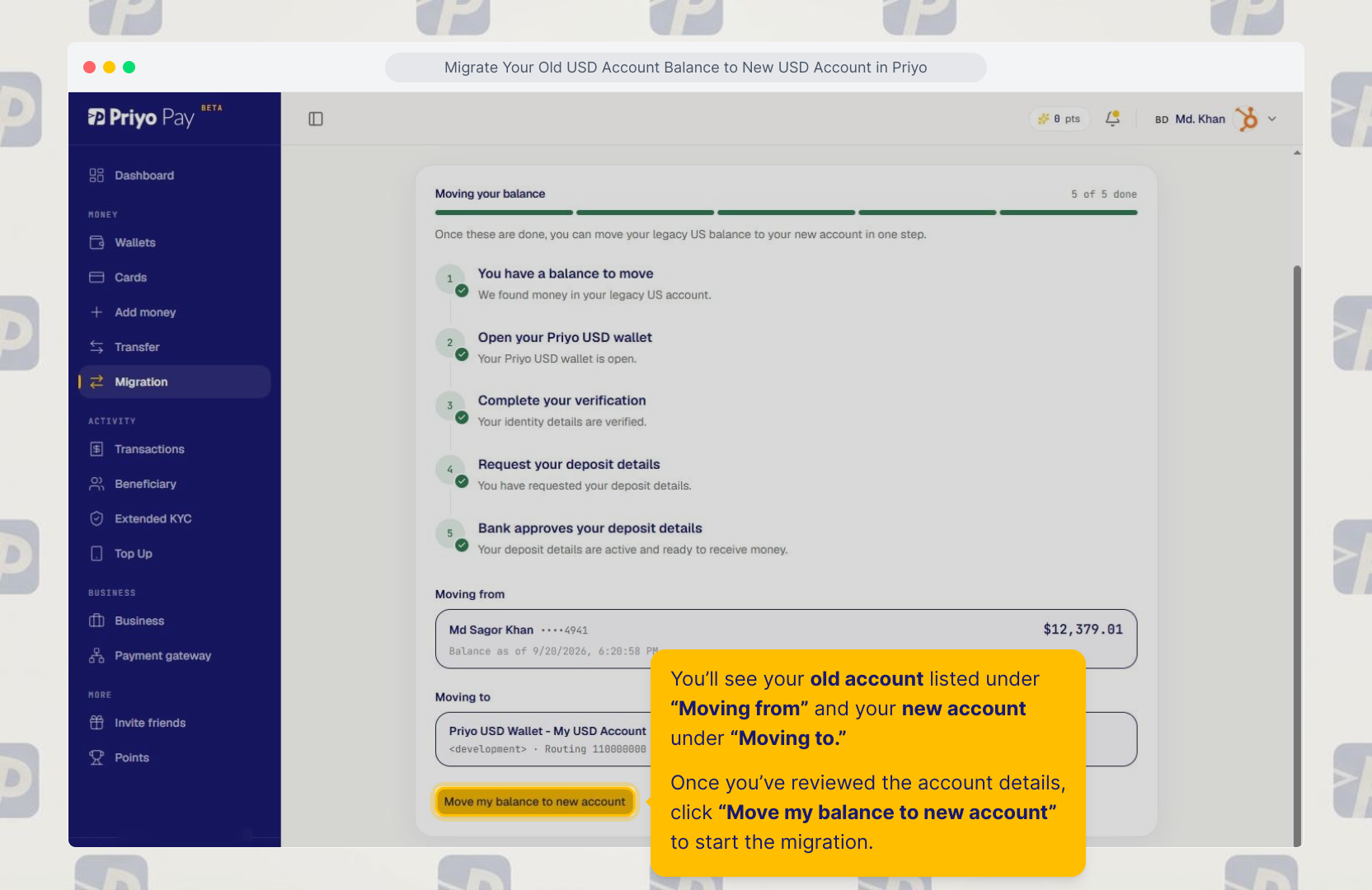
You’ll see your old account listed under “Moving from” and your new account under “Moving to.”
Once you’ve reviewed the account details, click “Move my balance to new account” to start the migration.
7. Confirm the transfer
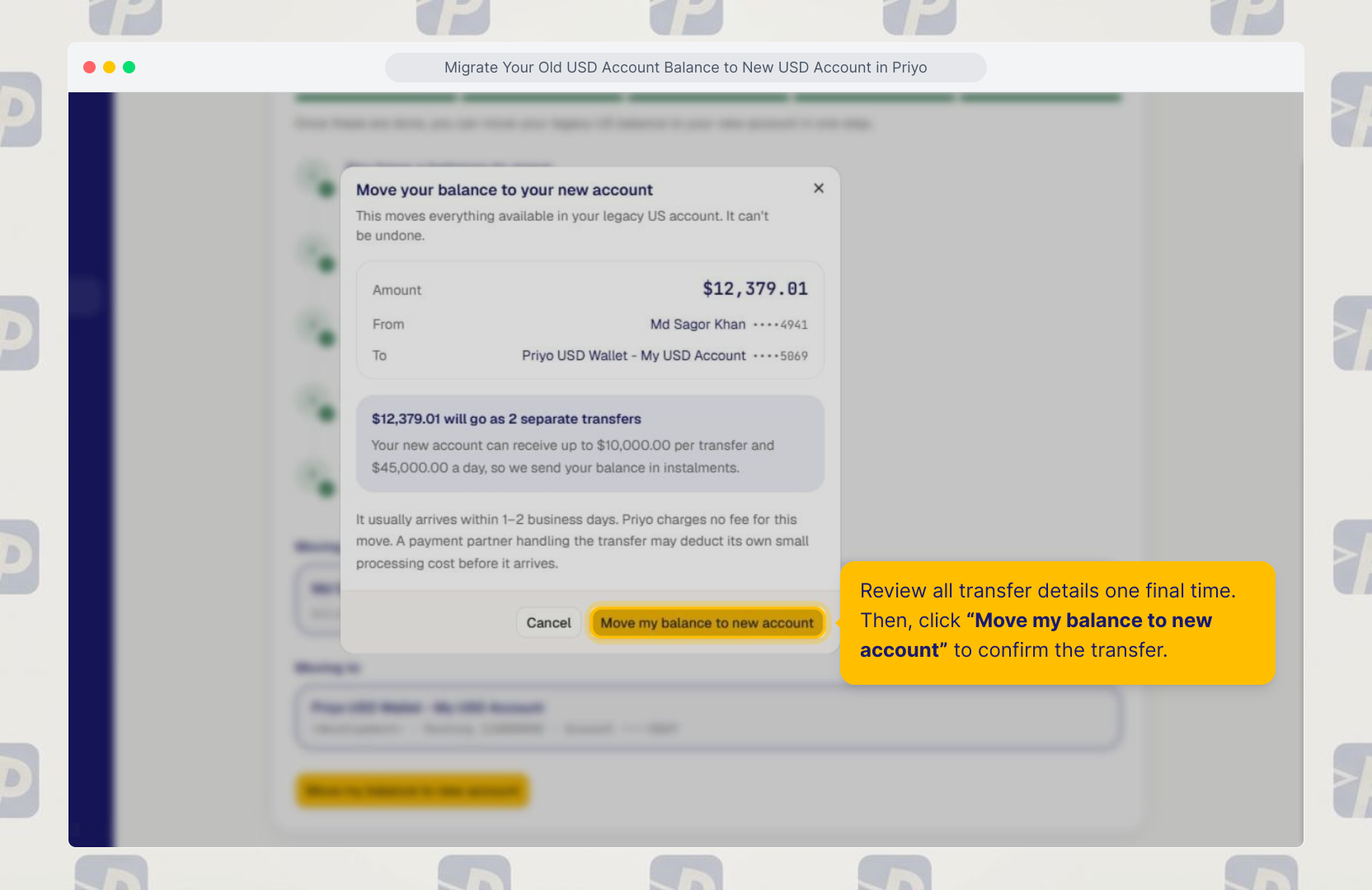
Review all transfer details one final time.
Then, click “Move my balance to new account” to confirm the transfer.
8. Track your pending transfer
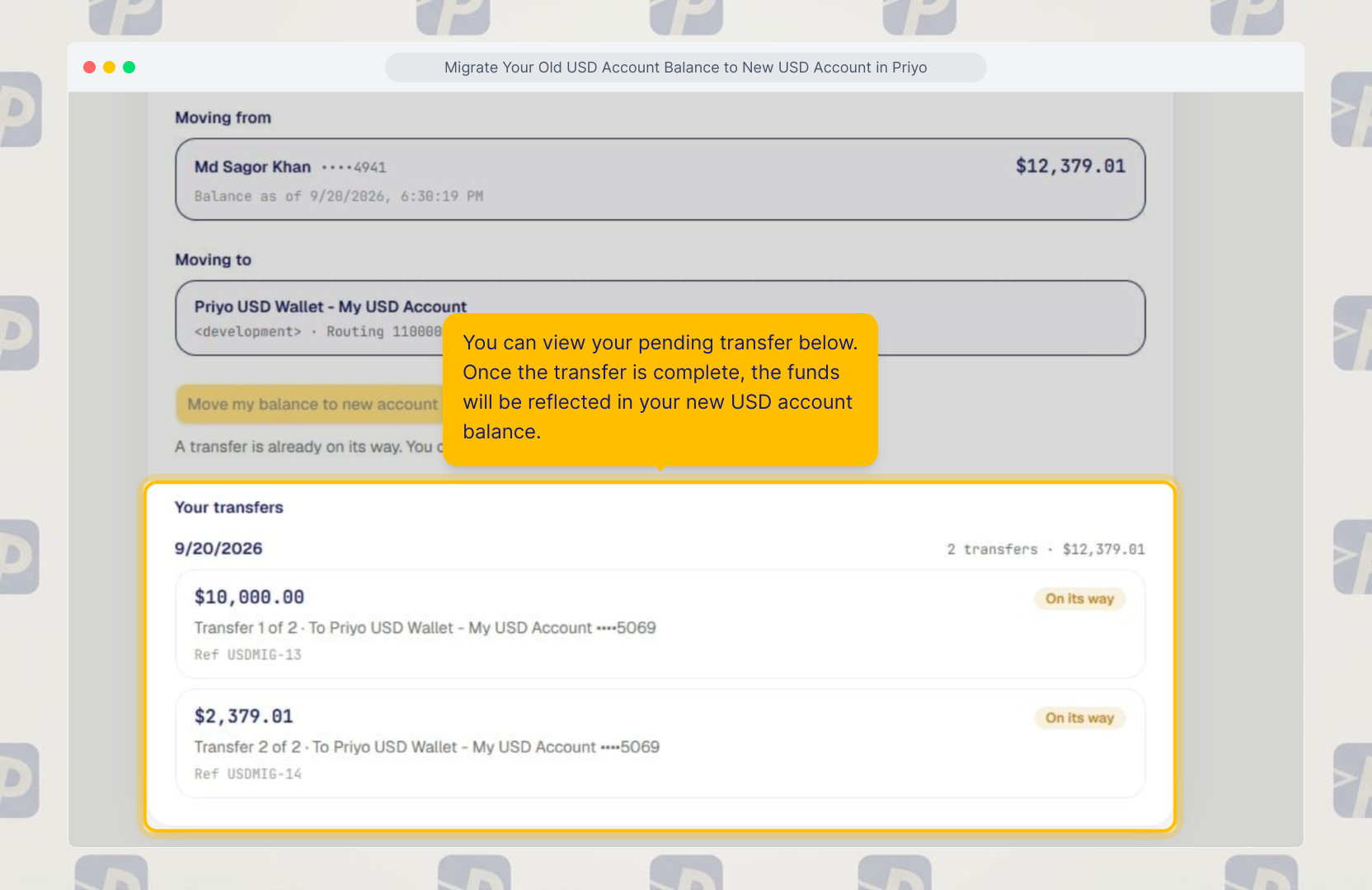
You can view your pending transfer below.
Once the transfer is complete, the funds will be reflected in your new USD account balance.
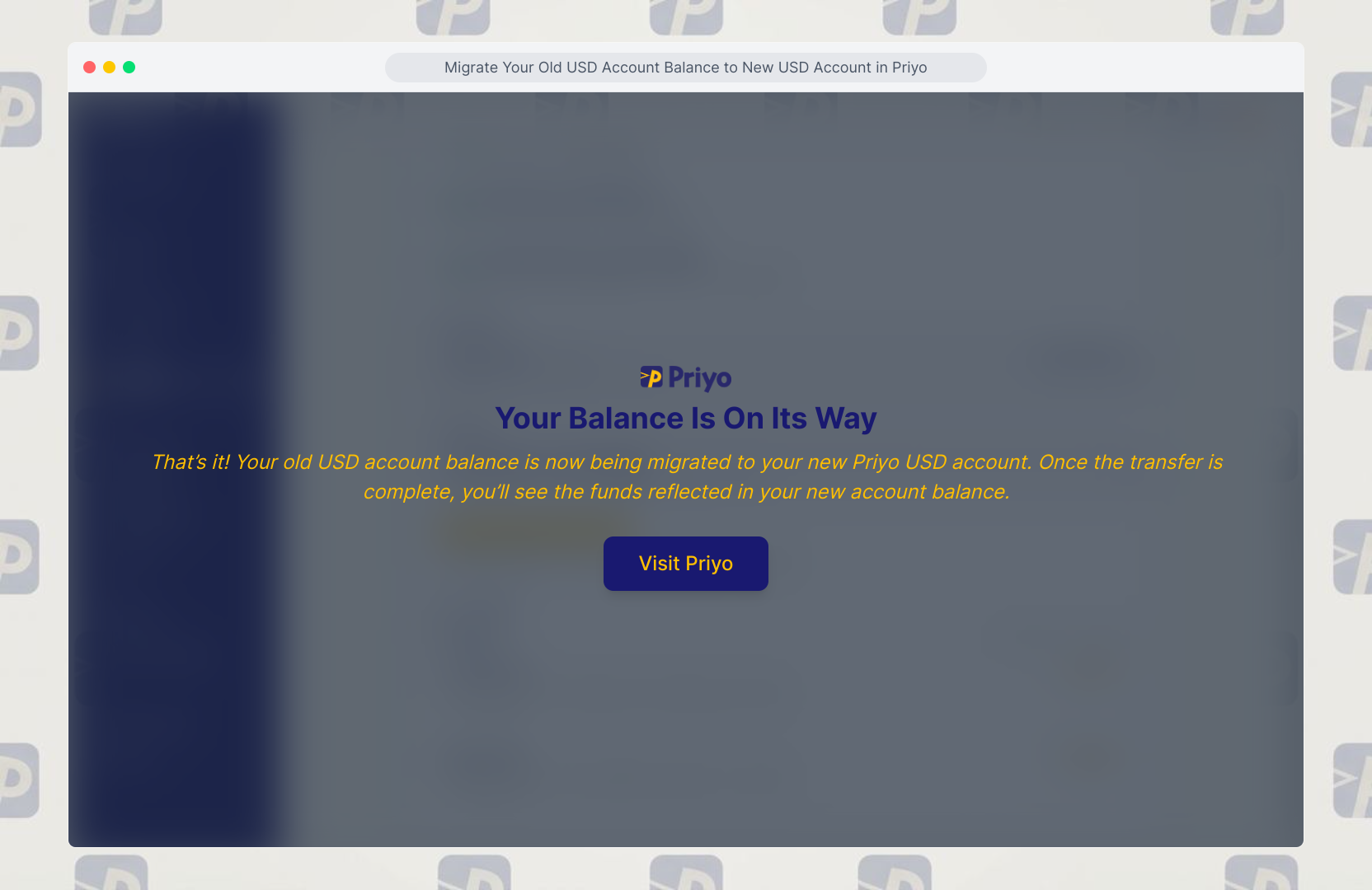
9. Your balance is on its way
Your old USD account balance will be transferred to your new USD account.
Once the transfer is complete, you’ll see the funds reflected in your new account balance.
Updated on: 17/10/2026
Thank you!